How to use FH6 TuneLab.
From picking a car to a finished tune — in four steps. Plus two optional extras for pinpoint accuracy.
A working tune in four steps.
Pick your car
Open the Garage and find your car — all 618 from the official Forza list, with complete factory data.
Tip: press Ctrl+K, type the name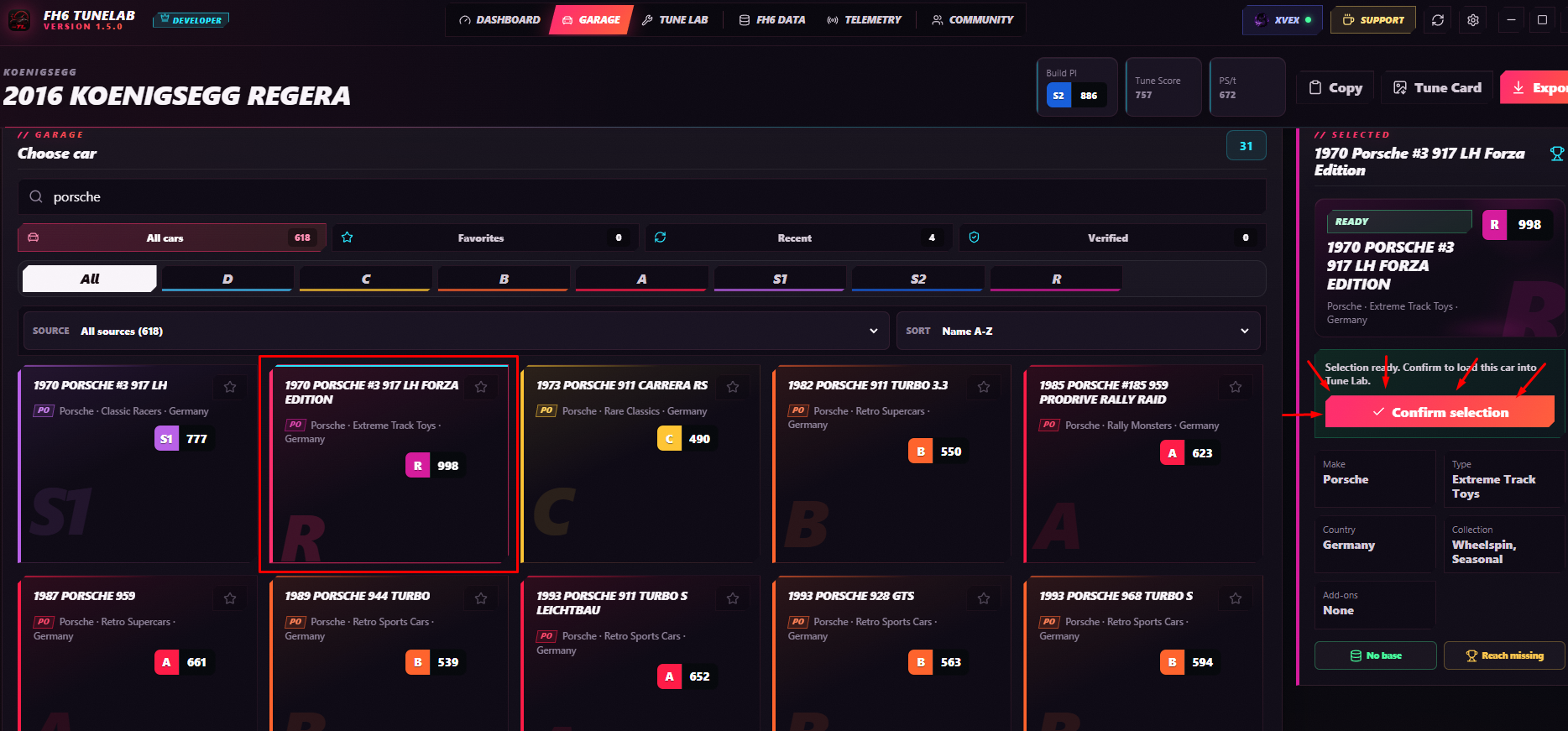
Choose a driving style
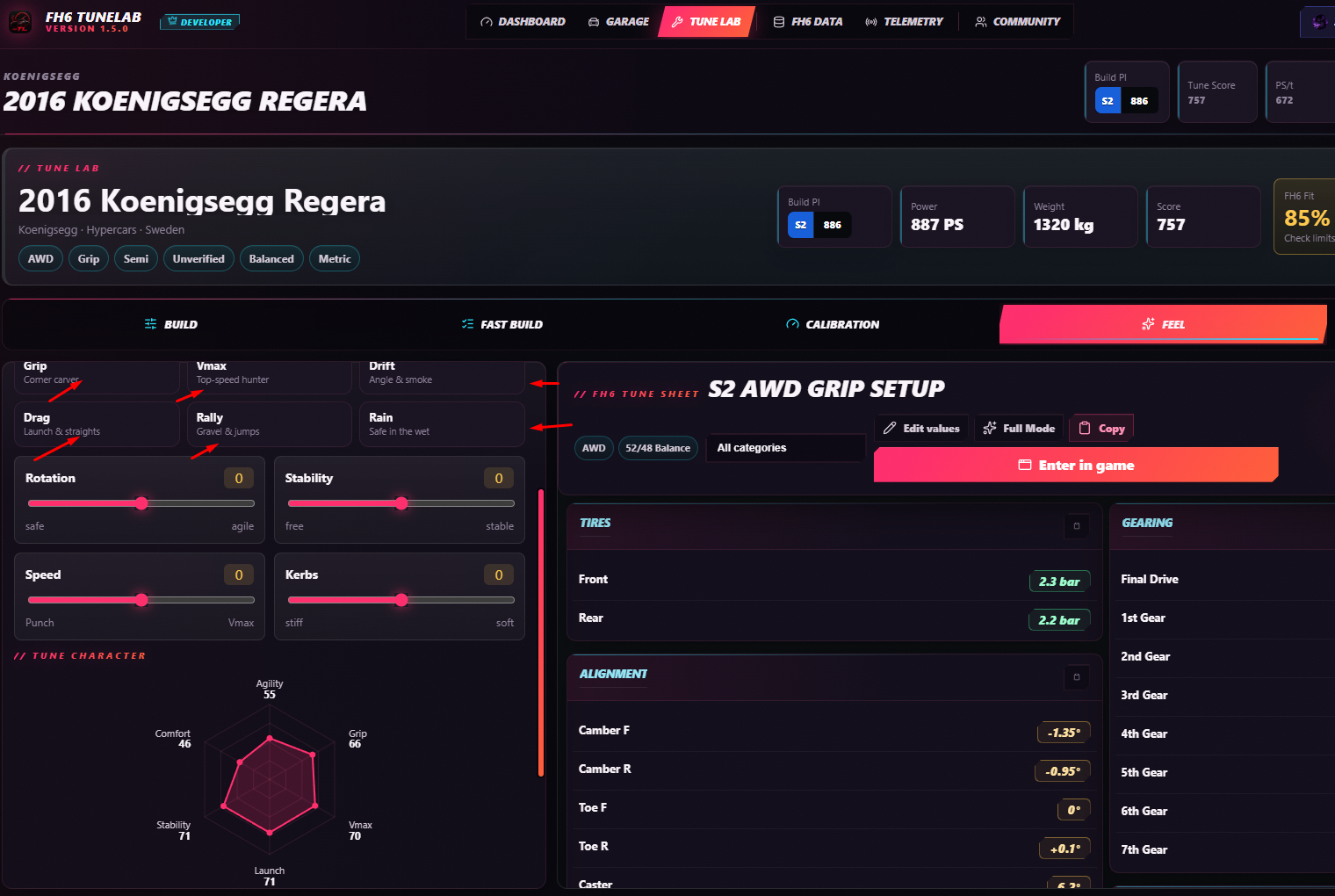
In the Tune Lab, open the Feel tab and click a recipe — Grip, Vmax, Drift, Drag, Rally or Rain. One click sets the discipline and every slider. The radar shows the resulting character.
Read the Tune Sheet
Open the Tune Sheet tab. It lists the finished FH6 inputs. Work through the FH6 tabs top to bottom — Exact Input means type that number exactly as shown.
Enter it in game
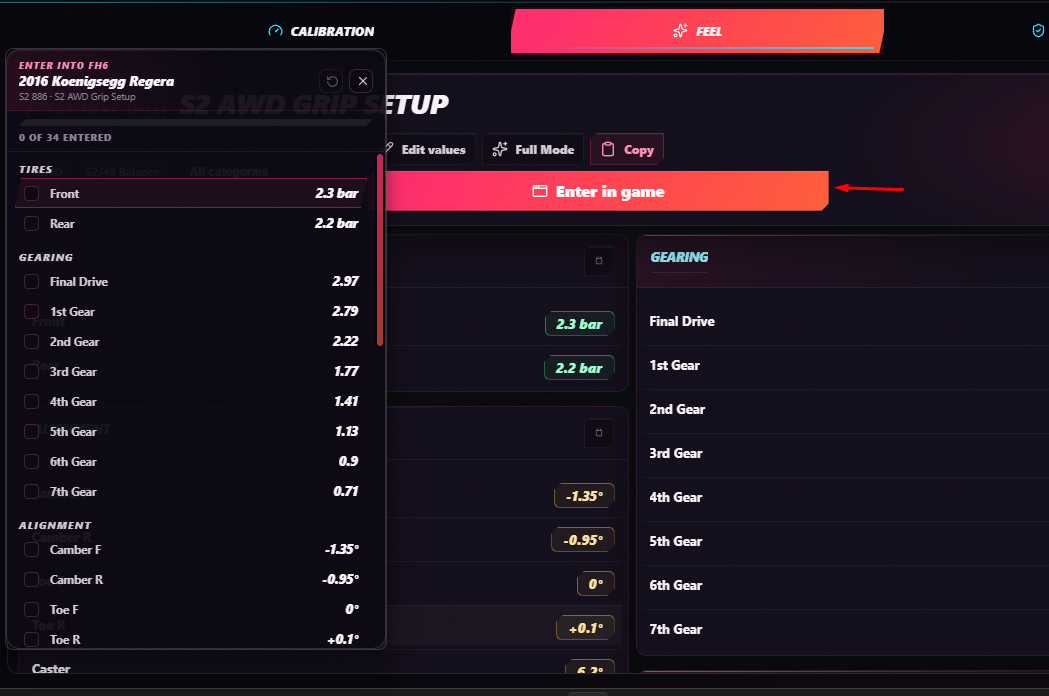
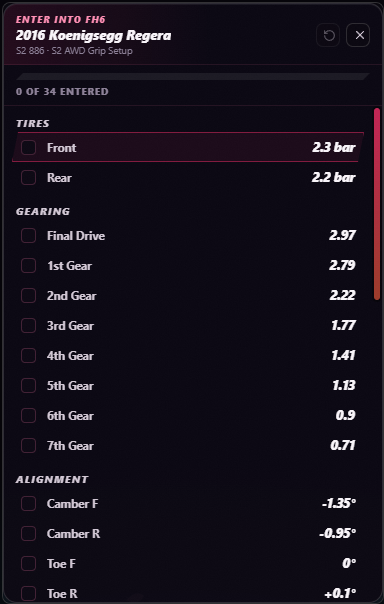
Click “Enter in game”. A small window floats over FH6 with a checklist — type each value and tick it off. When it's empty, you're done — hit the track.
Want it pinpoint? Two extras.
Fast Build
Pick a target class and a build style. The app hands you an upgrade order and a shopping checklist for the FH6 Upgrade Shop, so you land exactly on the target PI.
Calibration / FH6 Data
Enter the values FH6 actually shows — PI, power, weight, tires, and only the height/spring/aero ranges FH6 unlocks. Save it, and the app calculates from real numbers instead of an estimate. The Capture Wizard walks you through it field by field.
Optional: live telemetry & HUD.
Turn on Data Out in FH6, point it at 127.0.0.1 with the port the app shows, and press Start. You get live gauges, run recording, A/B compare of two runs, and an in-game HUD overlay you can drag anywhere — purely for fine-tuning.
Stuck on something? Ask in our Discord — we're happy to help.